

Custom Notifications for Unscheduled Orders
Custom SMS and email notifications can now be sent to unscheduled orders, up to 100 at a time, using the same templates already available for routes. Available on all plans.
Read More
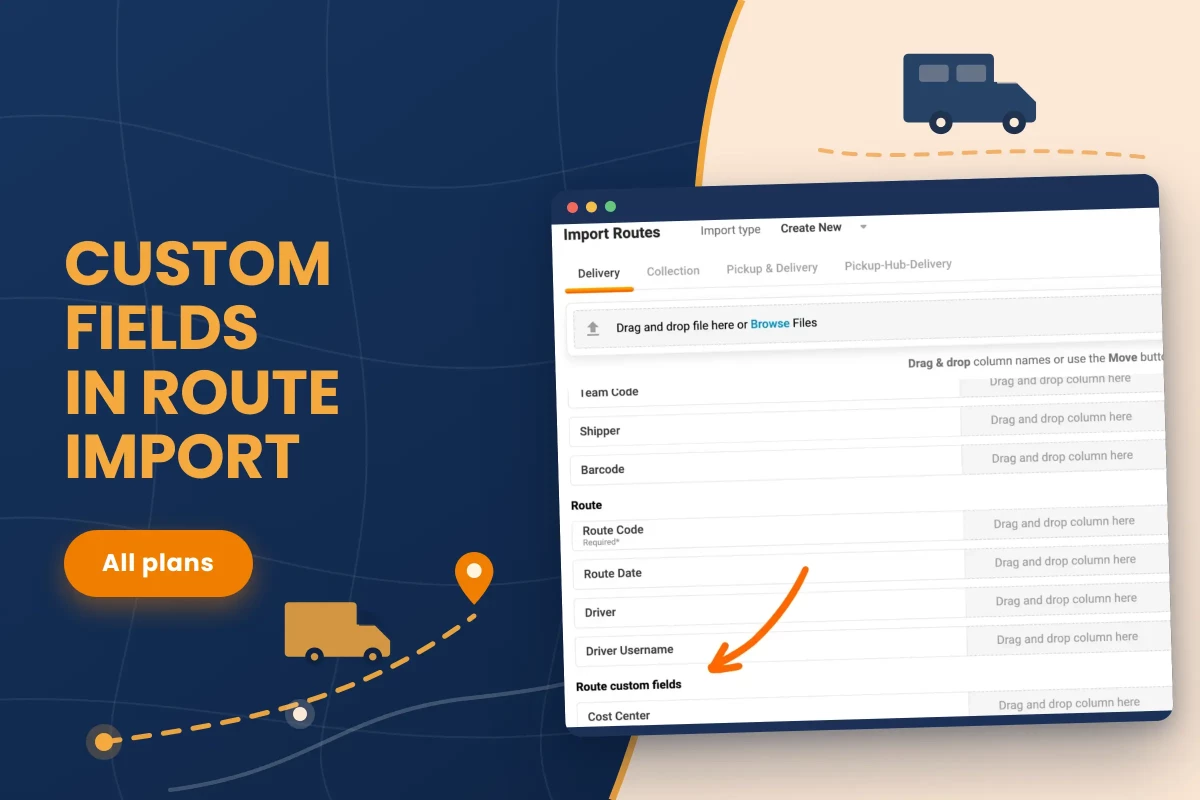
Custom fields are where operations data goes when the standard form has no box for it. Temperature class, trailer number, cost center, the ferry booking reference, the name of the subcontractor running the leg. Plenty of that data belongs to the route as a whole and not to any single order on it.
On orders, custom fields have been part of import for a long time. On routes, they had to be filled in through the interface, one route at a time, after the import was already done. For a planner importing thirty routes from a TMS export every morning, that meant thirty routes to reopen and thirty fields to retype.
Route import now reads those fields from the file.
Open Import Routes in Plan & Track. Under the Main and Route sections there is now an additional one: Route Custom Fields. It lists every custom field configured for routes, and columns from your file are dragged onto them the same way every other field is mapped.
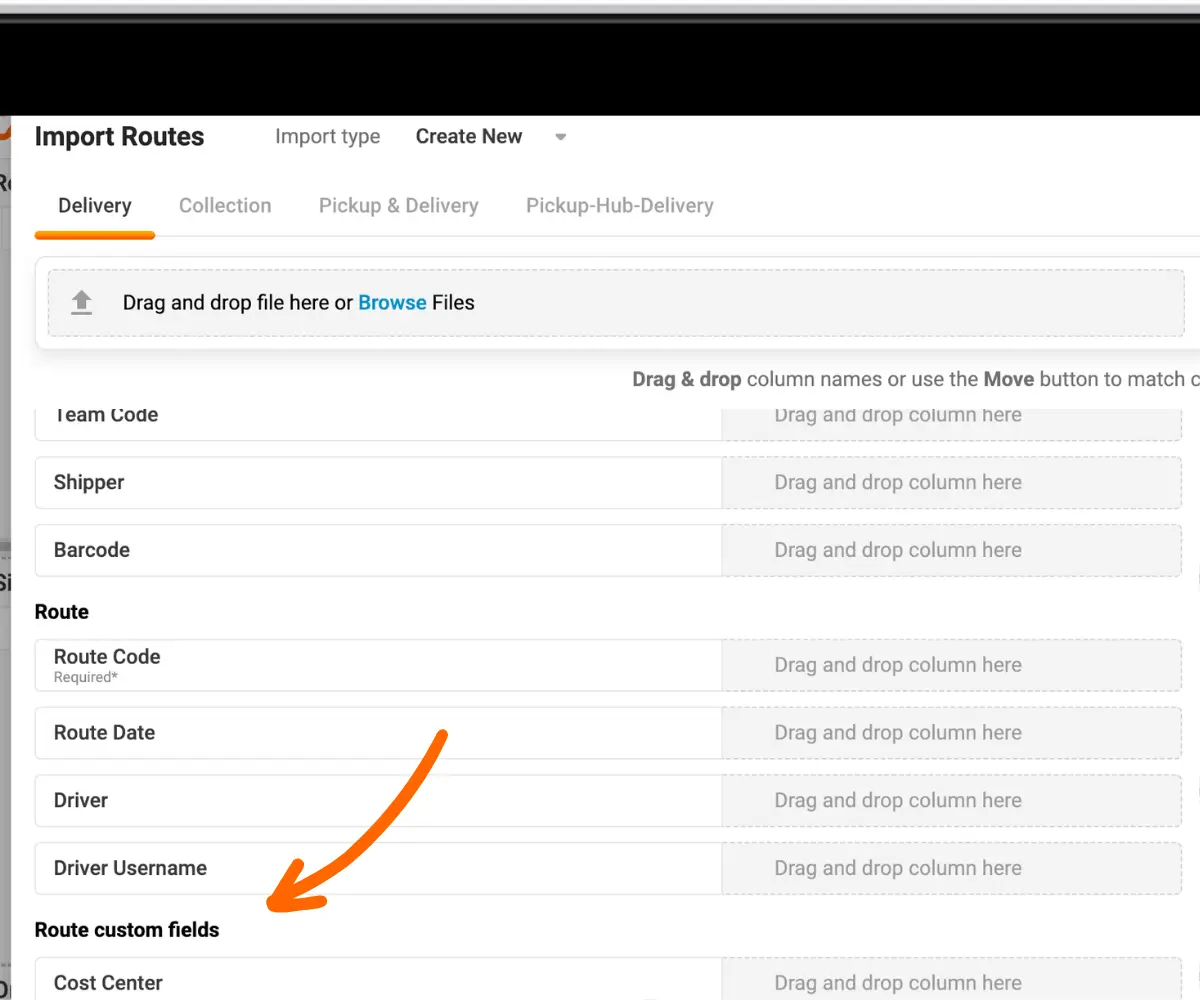
The section follows the logic already in order import. With no route custom fields configured, no section appears. Add one in Settings and the section shows up with the field in it.
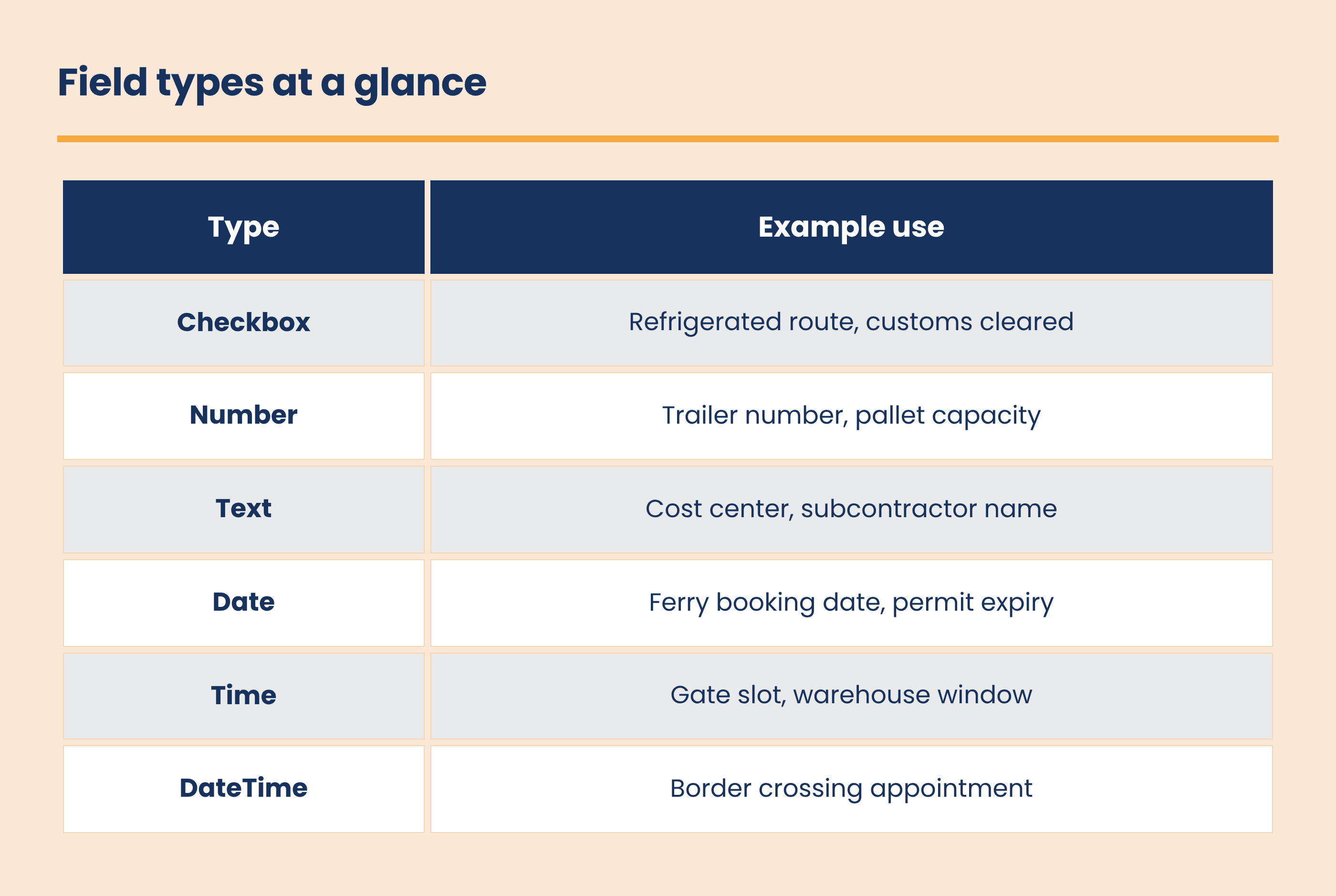
Six field types are supported, as shown below.
Values are checked during import. Anything that does not match the field type comes back as a line-by-line error list, so a bad date format in one row does not leave you guessing which row it was.
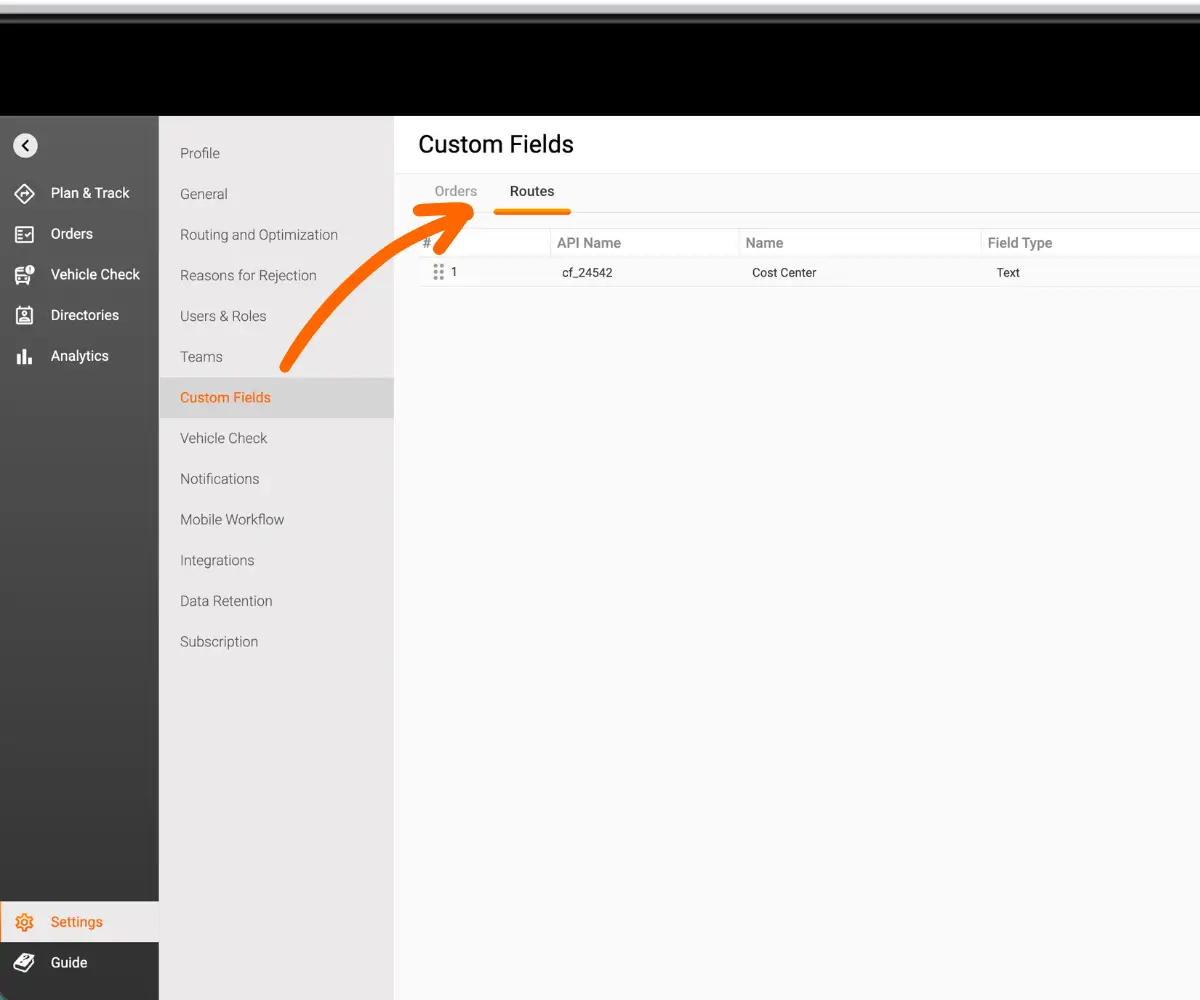
Route custom fields are configured in Settings → Custom Fields → Routes. Add a field, give it a name, pick its type, and decide whether drivers see it in the mobile app.
Then add a column for the field to your import file and map it during import.
A route custom field describes the whole route, so every order going into the same route must carry the same value in that column. Two different values inside one route produce a data mismatch error on import.
Order custom fields work per order, which is simpler to prepare. Route fields apply to the route itself, and one route cannot have two trailer numbers.
This one came from customers who already keep custom fields on their routes. Adding the data by hand was the only option, and it scaled badly with the number of routes.
It also matters for anyone feeding Track-POD from another system. An ERP or TMS export carries the operational detail in its own columns, and those columns can now land on the route in one pass. Migrations finish without a cleanup stage, and scheduled integrations stop needing a person to complete what the file already contained.
Route import reads route custom fields from your file. Configure the field in Settings → Custom Fields → Routes, add a column for it, keep the value identical across all orders in a route, and map it during import. Checkbox, Number, Text, Date, Time and DateTime are supported, and validation reports problems line by line. Available on all plans.
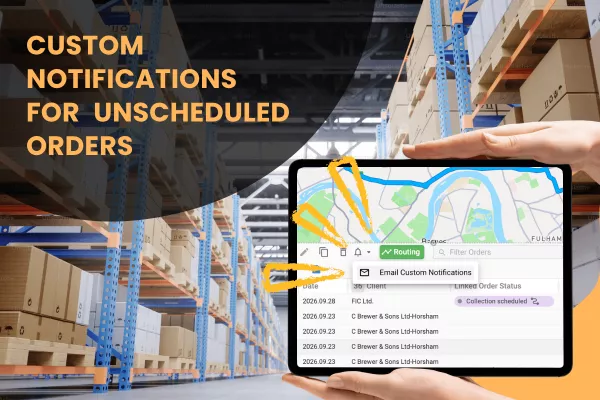
Custom SMS and email notifications can now be sent to unscheduled orders, up to 100 at a time, using the same templates already available for routes. Available on all plans.
Read More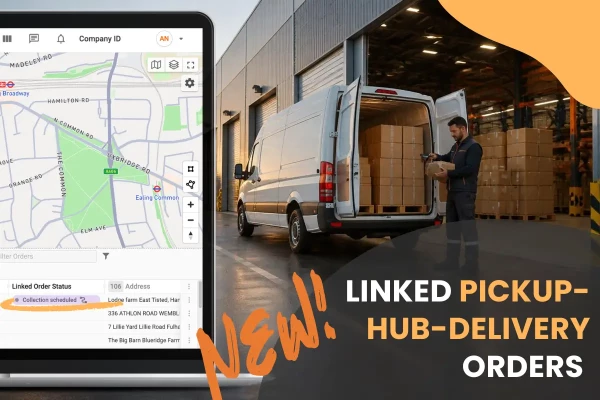
The pickup and delivery legs of a Pickup-Hub-Delivery order are now linked in Track-POD. A new Linked Order Status column shows where the paired order is, so dispatchers know when goods have reached the hub. Available on all plans.
Read More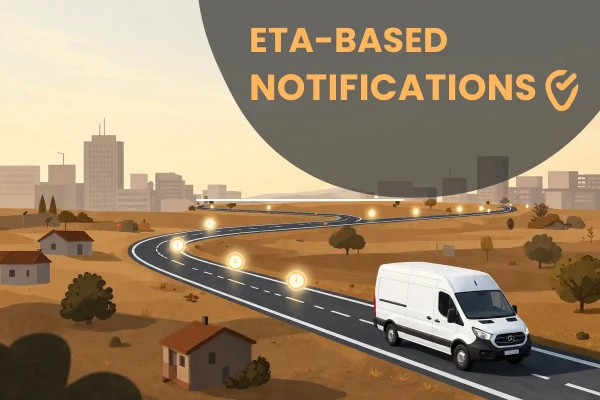
Scheduled delivery notifications in Track-POD can now go out a set time before each stop's planned ETA. Every customer on the route hears from you at the right moment, including on multi-day routes. Available on the Ultimate plan.
Read More