New Built-In Integration: Sage Accouting

by
Anton Ananich
October 19, 2026
In many businesses the order starts life in Sage. Someone raises a sales invoice or a quote, and then the same customer, address and goods get typed into the delivery system a second time. When a delivery comes back short, the invoice has to be corrected by hand, and the proof of delivery ends up somewhere other than the document finance works from.
Track-POD now connects to Sage Accounting directly. Invoices or quotes come in as delivery orders, and once the delivery is done the result goes back to Sage: the quantities actually delivered on the invoice and, if you switch it on, the ePOD PDF attached to it. It was one of the integrations customers asked for most often, and it is set up the same way as the other Track-POD integrations in Settings → Integrations.
Connecting Sage
You set up the connection yourself, from your Track-POD account, in four steps.
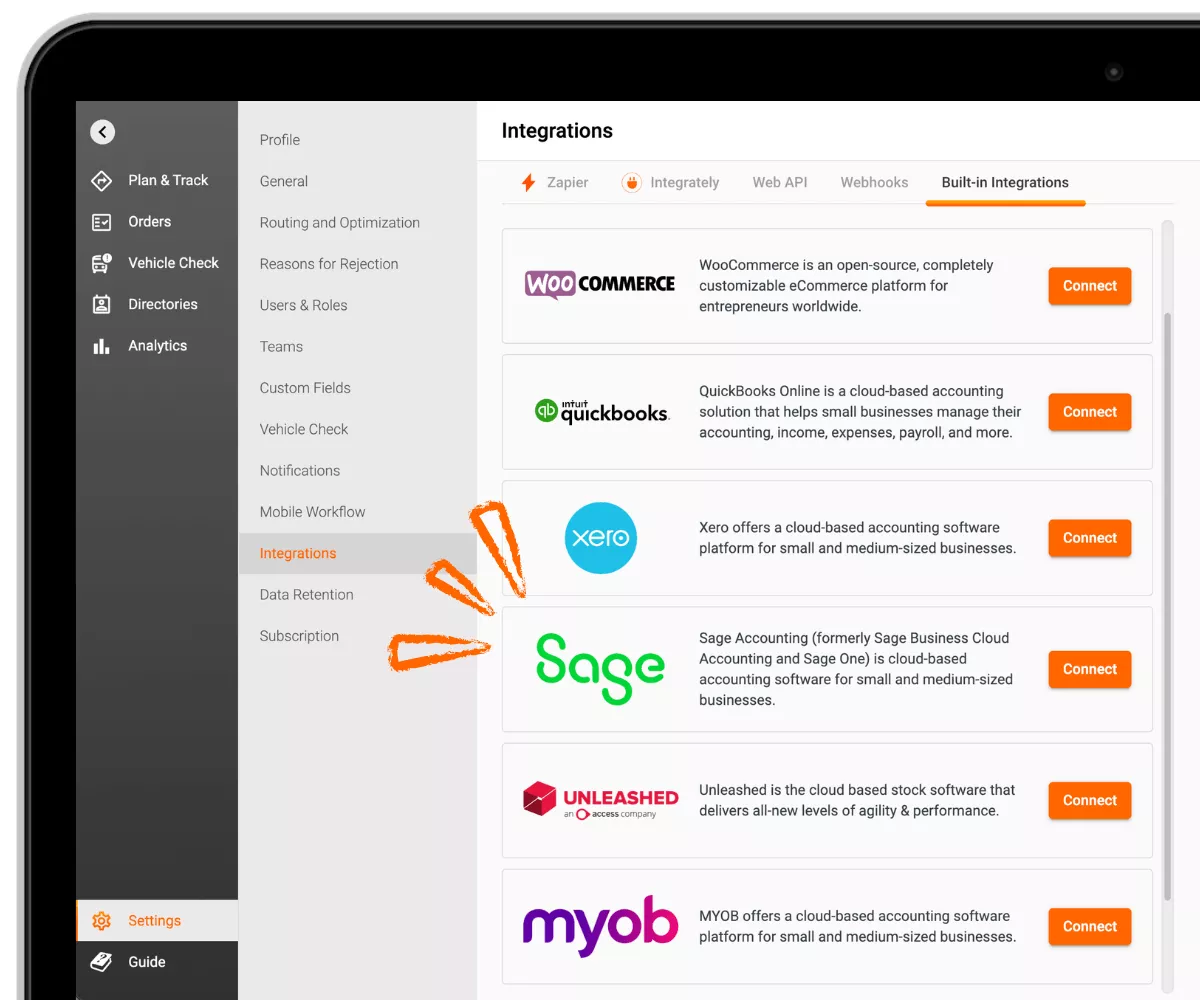
- Go to Settings → Integrations → Sage Accounting and click Connect to Sage Accounting.
- You are taken to Sage. Sign in with your Sage business account and select the business you want to connect.
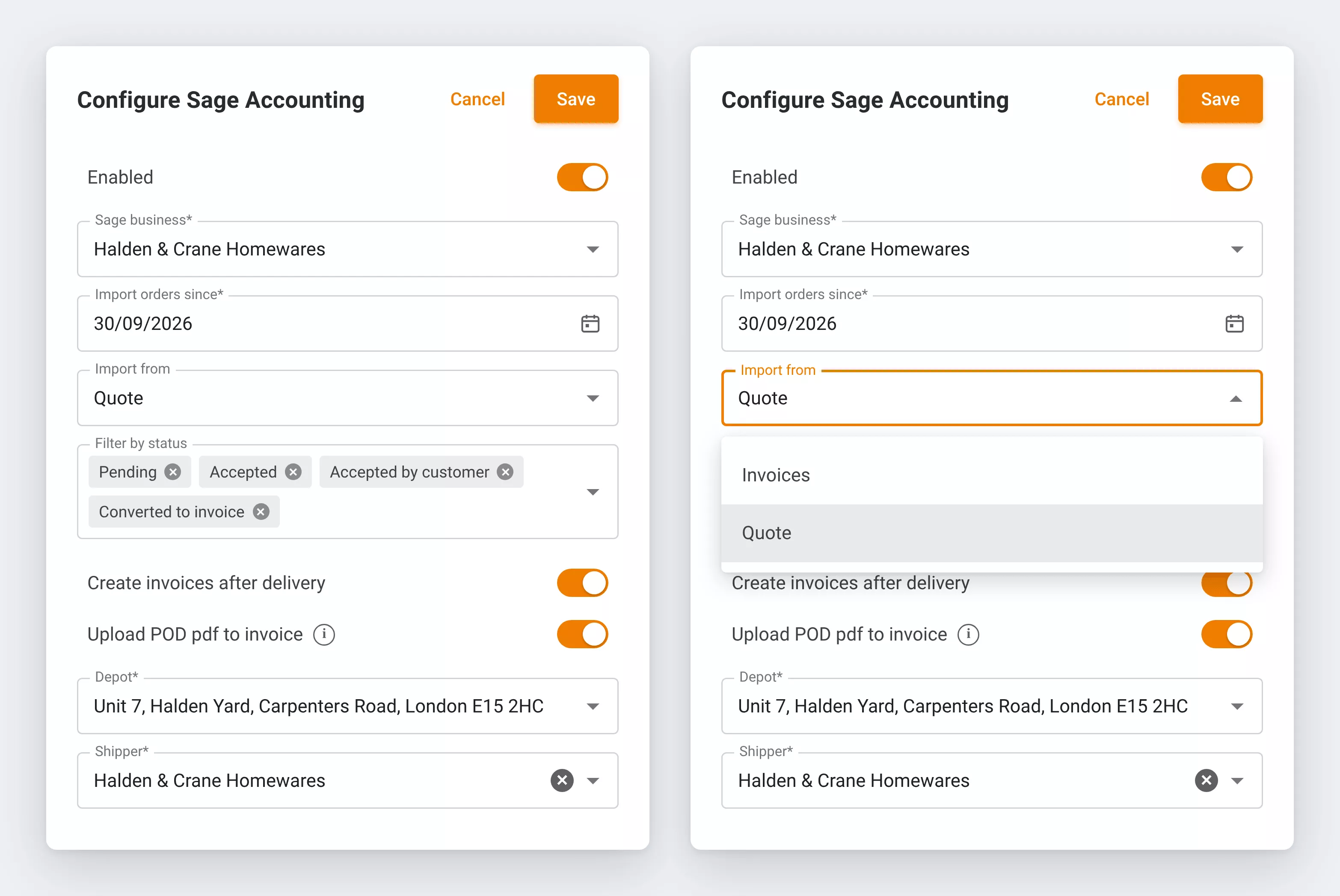
- Back in Track-POD, choose what to import: invoices or quotes, the status filter, the date to import from, and the default depot and shipper.
- Switch on the export options you need: updating invoices, creating invoices after delivery, uploading the POD PDF, and save.
From invoice or quote to order
The most important setting is where orders come from. Track-POD can import either sales invoices or quotes, so the integration fits whichever document your team raises first. Anyone who works in Sage will know which one that is for their business.
Each imported document becomes a Track-POD order with the customer, delivery address, contact details and goods already filled in. The status filter and the start date decide which documents are brought in, and the default depot and shipper are applied to every imported order.
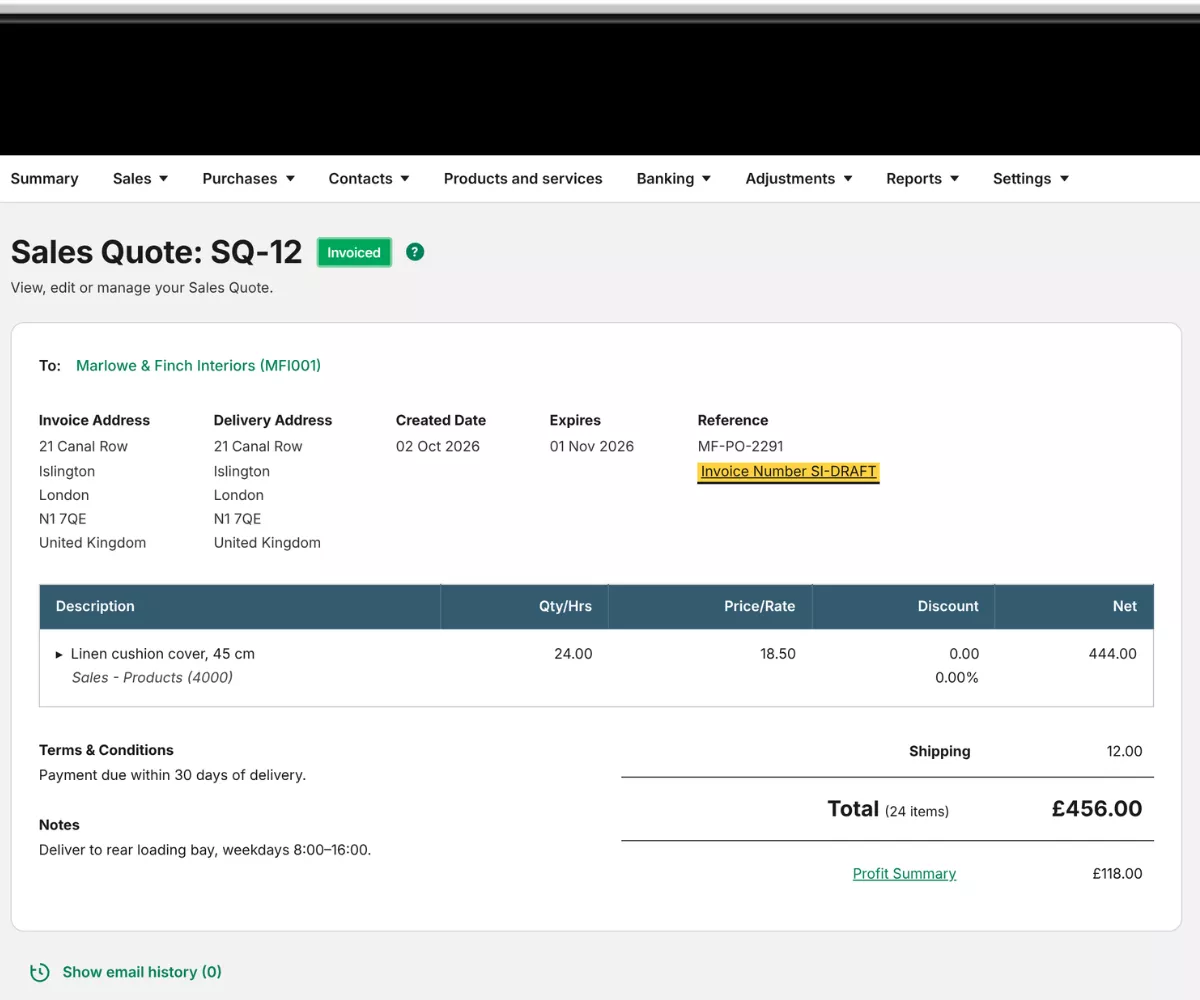
The order history records that the order came from Sage, so anyone looking at it later can see where it originated.
After delivery: back to Sage
Once the driver completes the order, the result goes back to Sage. Which export options you switch on decides what happens there:
- Updating invoices writes the quantities actually delivered back to the invoice.
- Creating invoices after delivery raises the invoice in Sage only when the goods have been delivered.
- Uploading the POD PDF attaches the electronic proof of delivery to the invoice.
A partial delivery changes the invoice to match. Quantities, totals and VAT are updated to what the customer actually received, and an order that isn't delivered at all voids its invoice. Nobody has to compare the driver's paperwork against Sage line by line.
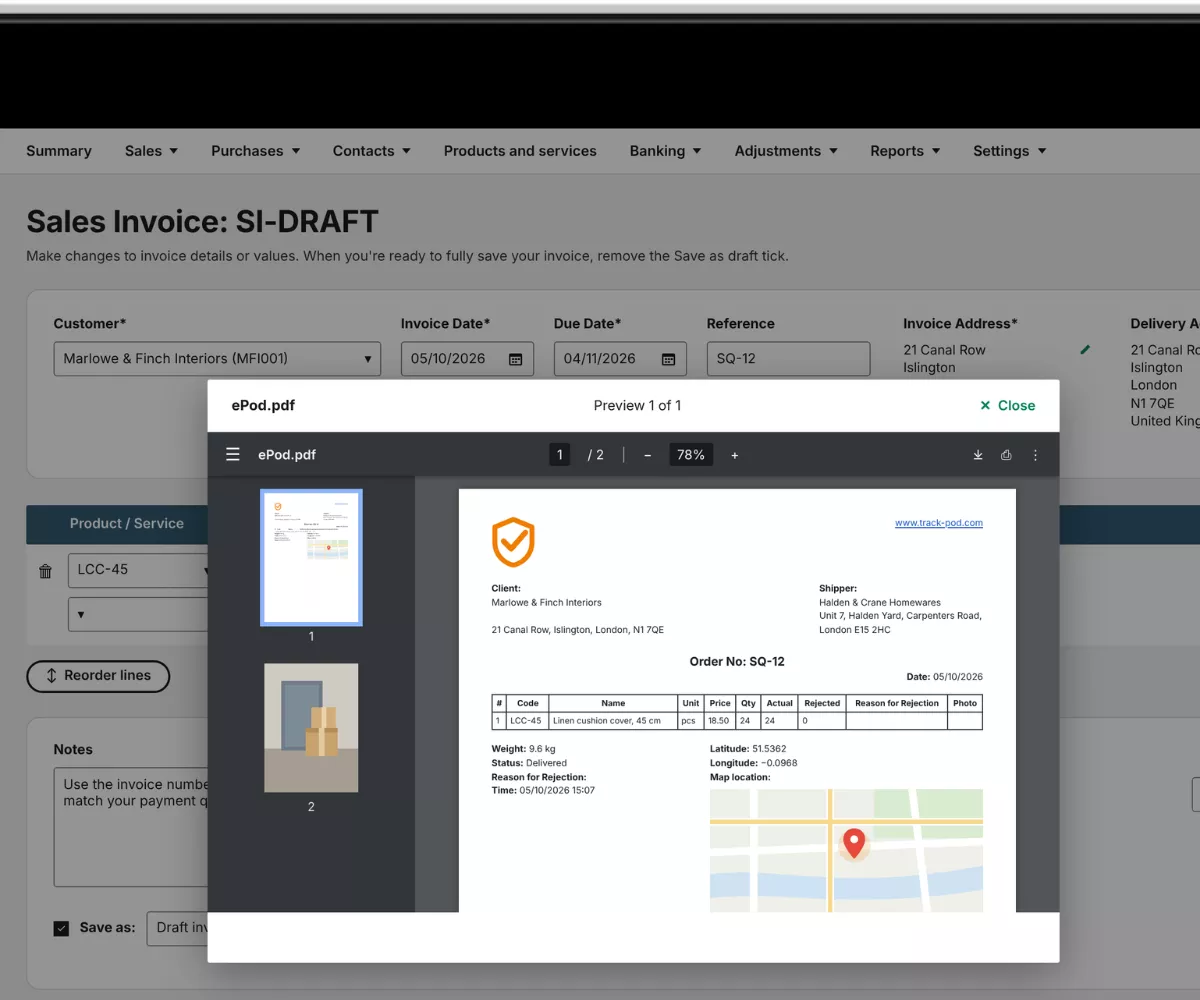
The ePOD attachment is optional, so teams that keep proof of delivery elsewhere can leave it off and still get the quantity updates.
Why it matters
The integration removes the step where the same order is entered twice. Orders are created from the accounting documents themselves, so the customer, address and goods in Track-POD are the ones finance already has.
It also keeps billing in line with what actually happened on the road. Short deliveries and failed ones adjust the invoice automatically, and the proof of delivery sits on the invoice where finance will look for it when a customer queries a charge.
Recap
Track-POD now connects to Sage Accounting from Settings → Integrations. Sales invoices or quotes come in as orders with customer, address, contacts and goods mapped. After delivery, Sage receives the delivered quantities, partial and failed deliveries adjust the invoice, and the ePOD PDF can be attached to it.